
Grandstream Phone Headset Compatibility Guide
Your complete resource for selecting the right headset for your Grandstream telephone. Find compatible equipment, cables, amplifiers, and wireless solutions all in one comprehensive guide.
Why Grandstream Headset Compatibility Matters
Grandstream Network is a global technology company known for its unified communications and networking solutions. It's one of the leading companies that has been successful in the integration of the telephone headset into the Grandstream telephones.
Many headsets are compatible with the Grandstream telephones, but finding the perfect amplifier or direct-connect cable is paramount. Similar to other business phone systems like Cisco phones or Avaya systems, proper headset compatibility ensures optimal call quality and productivity.
In this comprehensive guide, we will learn about the compatible headsets and equipment needed for seamless working.
Key Takeaways
- Not all headsets work with all Grandstream phone models - compatibility is critical
- You'll need either an amplifier or direct connect cable for corded headsets
- Wireless headsets require additional components like hand lifters or EHS cables
- Newer Grandstream phones have built-in amplifiers, making setup easier
- Special programming may be required for EHS functionality
- Expert support is available before, during, and after purchase

Guide Navigation
What are the Wireless Headset Solutions for Grandstream?
The wireless headset solutions are booming in today's world with freedom from tangled cables, mobility and better performance.
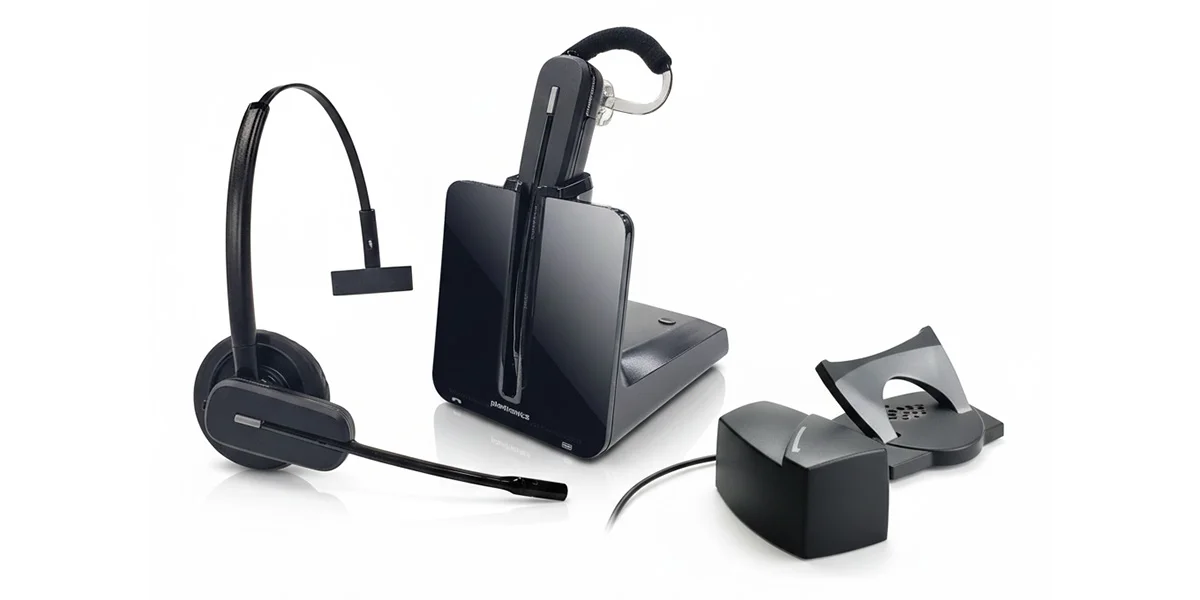
Plantronics CS540 Wireless Headset
With a wireless headset, you increase your productivity as you can do other tasks while attending the calls hands-free. You can even grab a file from another room and ask your coworker a question being connected on the call.
You can try the Plantronics CS540 wireless headset, which is a lightweight and comfortable headset that offers excellent sound quality. With this headset, you can start inbound and outbound calls on your phone while roaming within a range of 350 feet.
● Setup Instructions
When you want to take calls, simply press the headset "ON" button and then press the phone's headset button.
For remote call answering and hanging up, you will need the HL10 or EHS cable. This headset is available in an over-the-ear wearing style.
What are the Corded Headset Solutions for Grandstream Phones?
With the boom of wireless headsets, many businesses still opt for wired headset solutions for uninterrupted calls.
For making a corded headset solution work, you need either an amplifier or a direct-connect cable. The Grandstream telephones work best with Plantronics headsets.
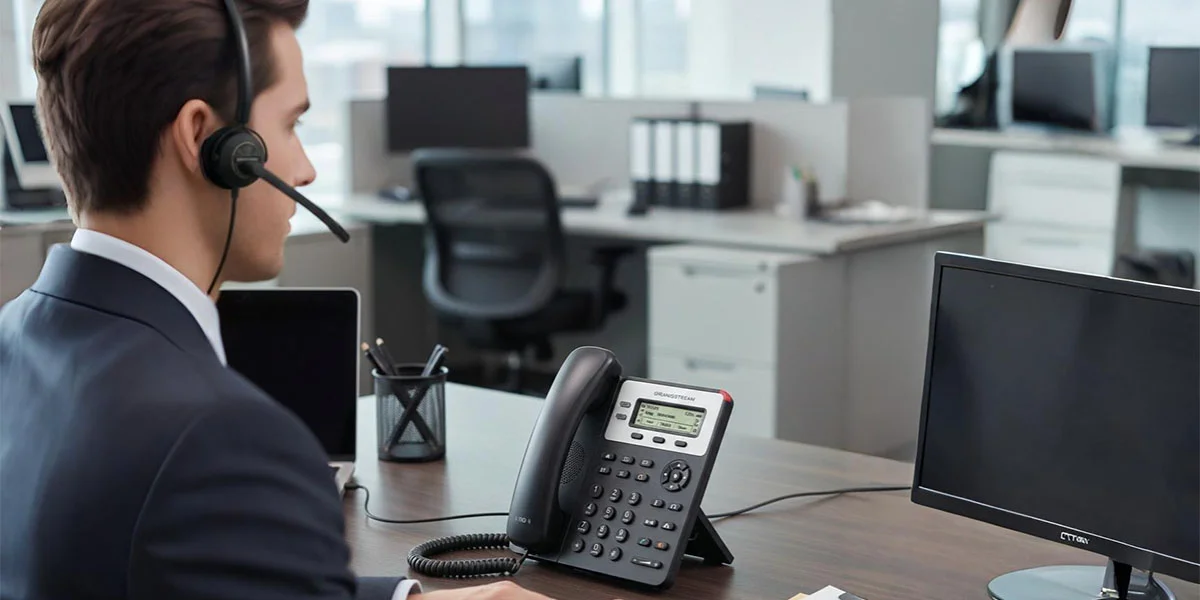
Plantronics HW540 Corded Headset
The Plantronics HW540 corded headset is available in a convertible design, i.e., a 3-in-1 headset without any compromise. This headset delivers excellent sound quality with a noise-cancelling microphone and has a comfortable design with soft ear cushions.
It works on a quick disconnect (QD) connection, so you can instantly walk from the desk. Enjoy comfort with a lightweight design and soft ear cushions for all day. It's a durable headset as constructed with laser welding.
Equipment Needed
Plantronics U10P-S Direct Connect Cable
For an H-series headset, you will need a U10P-S cable to connect it to the Grandstream phone. Plug this cable into the headset port of the Grandstream phone.
To answer the call: Just press the headset button.
Call on hold: If you want to put the call on hold while walking away from the desk, just pull apart the section of the QD cable. Your call will be resumed when you reconnect the quick disconnect cable.
● Recommended Setup
For better performance, you can try the Poly EncorePro HW540 Headset with Poly U10P-S Adapter cable for H-series headsets.
Grandstream Headset Compatibility Chart
This section contains the compatibility chart that summarizes the compatible wired and wireless solutions with the required equipment.
▲ Important Disclaimer
The information chart is designed solely according to the information provided by the manufacturers and is subject to change without prior notice. We will not be responsible for any errors and omissions.
| Phone Model | Poly Corded | Cable or Amp (Use with H-Series) | Poly Wireless Headsets | Poly EHS Cable/Lifter |
|---|---|---|---|---|
| GRP2612, 2612P, 2612W | Poly QD Series or USB Headsets | U10P-S Cable | Poly Desk Phone Series or USB Headsets | Poly APD-80 or PV-63 |
| GRP2613 | Poly QD Series or USB Headsets | U10P-S Cable | Poly Desk Phone Series or USB Headsets | Poly APD-80 or PV-63 |
| GRP2614 | Poly QD Series or USB Headsets | U10P-S Cable | Poly Desk Phone Series or USB Headsets | Poly APD-80 or PV-63 |
| GRP2615 | Poly QD Series or USB Headsets | U10P-S Cable | Poly Desk Phone Series or USB Headsets | Poly APD-80 or PV-63 |
| GRP2616 | Poly QD Series or USB Headsets | U10P-S Cable | Poly Desk Phone Series or USB Headsets | Poly APD-80 or PV-63 |
| GRP2624 | Poly QD Series or USB Headsets | U10P-S Cable | Poly Desk Phone Series or USB Headsets | Poly APD-80 or PV-63 |
| GRP2634 | Poly QD Series or USB Headsets | U10P-S Cable | Poly Desk Phone Series or USB Headsets | Poly APD-80 or PV-63 |
| GRP2670 | Poly QD Series or USB Headsets | U10P-S Cable | Poly Desk Phone Series or USB Headsets | Poly APD-80 or PV-63 |
| GXE502x IPPBX | Poly QD Series | MDA524 | Poly Desk Phone Series | Poly HL10 |
| GXP Enterprise | Poly QD Series | MDA524 | Poly Desk Phone Series | Poly HL10 |
| GXP1200 | Poly QD Series | U10P-S Cable or MDA524 | Poly Desk Phone Series | Poly HL10 |
| GXP1400 | Poly QD Series | U10P-S Cable | Poly Desk Phone Series | Poly HL10 |
| GXP1405 | Poly QD Series | U10P-S Cable | Poly Desk Phone Series | Poly HL10 |
| GXP1450 | Poly QD Series | U10P-S Cable | Poly Desk Phone Series | Poly HL10 |
| GXP1610 | Poly QD Series | A10 Cable or MDA524 | Poly Desk Phone Series | Poly APD-80 or HL10 |
| GXP1615 | Poly QD Series | A10 Cable or MDA524 | Poly Desk Phone Series | Poly APD-80 or Poly HL10 |
| GXP1620 | Poly QD Series | A10 Cable or MDA524 | Poly Desk Phone Series | Poly APD-80 or HL10 |
| GXP1625 | Poly QD Series | A10 Cable or MDA524 | Poly Desk Phone Series | Poly APD-80 or Poly HL10 |
| GXP1628 | Poly QD Series | A10 Cable or MDA524 | Poly Desk Phone Series | Poly APD-80 or HL10 |
| GXP1630 | Poly QD Series | A10 Cable or MDA524 | Poly Desk Phone Series | Poly APD-80 or Poly HL10 |
| GXP1760 | Poly QD Series | A10 Cable or MDA524 | Poly Desk Phone Series | Poly APD-80 or HL10 |
| GXP1780 | Poly QD Series | A10 Cable or MDA524 | Poly Desk Phone Series | Poly APD-80 or Poly HL10 |
| GXP1782 | Poly QD Series | A10 Cable or MDA524 | Poly Desk Phone Series | Poly APD-80 or HL10 |
| GXP2000 (Older Phones 0.3 & 0.4) | Poly QD Series | 3.5mm Cable | Poly Desk Phone Series | Poly HL10 |
| GXP2000 (Newer Phones 1.0 & up) | Poly QD Series | 2.5mm Cable | Poly Desk Phone Series | Poly HL10 |
| GXP 2010 | Poly QD Series | U10P-S Cable or MDA524 | Poly Desk Phone Series | Poly HL10 |
| GXP 2020 | Poly QD Series | U10P-S Cable or MDA524 | Poly Desk Phone Series | Poly HL10 |
| GXP 2100 | Poly QD Series | U10P-S Cable | Poly Desk Phone Series | Poly HL10 |
| GXP 2124 | Poly QD Series | U10P-S Cable or MDA524 | Poly Desk Phone Series | Poly APD-80 or Poly HL10 |
| GXP 2130 | Poly QD Series | A10 Cable or MDA524 | Poly Desk Phone Series | Poly APD-80 or Poly HL10 |
| GXP 2130v2 | Poly QD Series | A10 Cable or MDA524 | Bluetooth headsets | N/A |
| GXP2135 | Poly QD Series | A10 Cable or MDA524 | Bluetooth headsets | N/A |
| GXP2140 | Poly QD Series | A10 Cable or MDA524 | Bluetooth headsets | N/A |
| GXP2160 | Poly QD Series | A10 Cable or MDA524 | Bluetooth headsets | N/A |
| GXP2170 | Poly QD Series | A10 Cable or MDA524 | Bluetooth headsets | N/A |
| GXP2200 | Poly QD Series | U10P-S Cable or MDA524 | Poly Desk Phone Series | Poly APD-80 or Poly HL10 |
| GXV3140 | Poly QD-Series | 3.5mm Cable | Poly Desk Phone Series | Poly HL10 |
| GXV3175 | Poly QD-Series | 3.5mm Cable | Poly Desk Phone Series | Poly HL10 |
| GXV3240 | Poly QD-Series | U10P-S Cable or MDA524 | Bluetooth headsets | N/A |
| GXV3275 | Poly QD-Series | U10P-S Cable or MDA524 | Bluetooth headsets | N/A |
● Note 1: Need for Adapter/Extension Cable 86538-01
Many Grandstream models require an adapter/extension cable 85638-01 for the A10 cable or EHS functionality. Otherwise, the speaker will work, but the microphone will be dead. The older CS models can use the Handset lifter only.
● Note 2: Poly Update 02/2023 - APD 80+ 65638-01 for Ring Alert Feature
The ring alert feature for Grandstream models, including the GXP2124, GXP2200, GXP2130, GXP2140, GXP2160, GXP3240, and GXP3275, is not implemented. You need to connect your CS500 series or Savi 700 series headset to the Grandstream phone. For connection, use an RD-1 ring detector or an APD-80 EHS cable.
The GXP2130v2/2135/2140/2160/2170 only supports remote call answering/hanging up with Bluetooth headsets. Anyhow, the volume adjustment and redial are not implemented.
● Programming for Plantronics EHS Headset
If you want to use the Plantronics EHS Headset, follow this procedure:
Go to GXP2139/GXP2140/GXP2160 web GUI → Settings → Audio Control → Headset type: "Plantronics EHS" and reboot the phone so that changes are made.
What's a Corded Grandstream Headset Solution?
A corded Grandstream headset solution uses a quick disconnect connection and requires two items: an amplifier or a direct connect cable.
Quick Disconnect
Quick Disconnect, termed as QD, is a type of connection that allows you to quickly disconnect from the phone. You just need to terminate the headset cable whenever you want to leave your desk without any delays.
Amplifiers and Direct Connect Cables
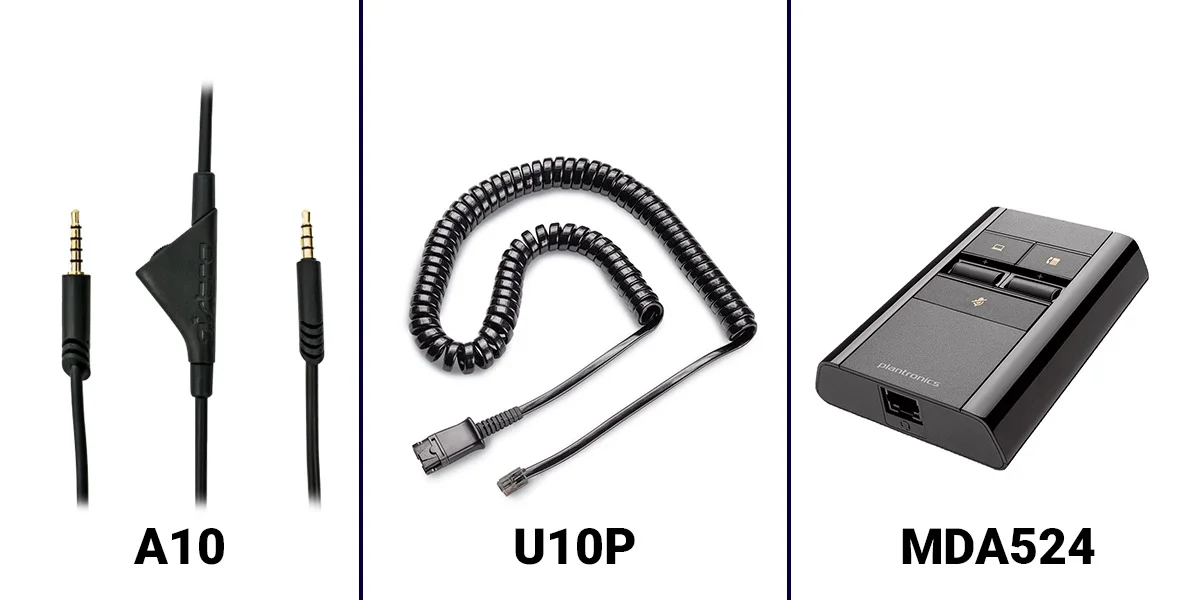
An amplifier or a direct-connect cable is required to connect the headset to your Grandstream phone. Amplifiers were originally used in the old phones, which gave full control over the volume for the speaker and microphone.
On the other hand, with the introduction of phones with built-in amplifiers, direct-connect cables were used. The direct connect cable or a 3.5 mm cable is plugged into the phone to use the standard H-series headsets.
Amplifiers
Cost: ~$77.25
When to Use: If you have an old phone model of Grandstream that does not have a built-in amplifier, you will need an amplifier.
Advantages:
• Full control over volume for speaker and microphone
• Works with all phone models
• Professional audio control
Direct Connect Cables
Cost: ~$29.95
When to Use: For newer Grandstream models with built-in amplifiers, you just need a 3.5mm cable or a direct connect cable.
Advantages:
• Budget-friendly option
• Simple plug-and-play setup
• Works with newer phone models
Note: They don't provide full volume control over the outgoing voice.
This cable and amplifier setup is standard across most business phone systems. If you're using multiple phone brands in your office, you may also want to check our guides for Aastra headset compatibility to ensure consistent headset solutions across your communication infrastructure.

How Corded Headsets Work with Grandstream Telephones?
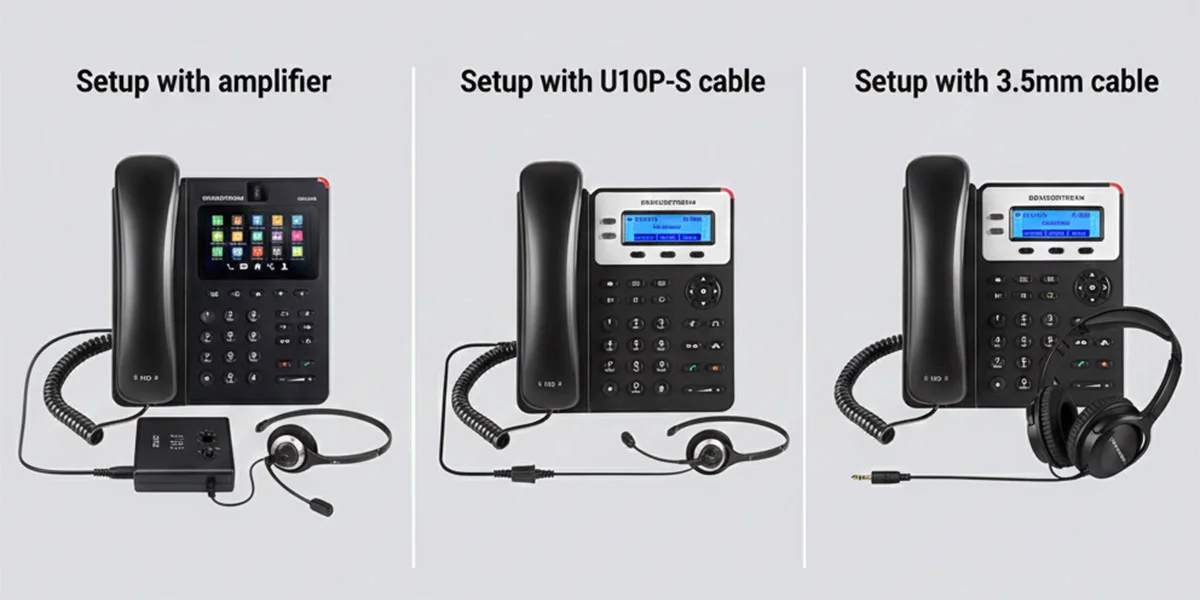
A corded solution for Grandstream works with three options: an amplifier, a 3.5mm cable, or a direct connect cable.
Setup Using an Amplifier
Connection: For an H-series headset, plug the amplifier into the headset port on your phone.
Initiating Calls: Press the "Call Control" button to start the call.
Ending Calls: Once you have finished talking, press the "Call Control" button again to end the call.
Setup Using Direct Connect Cable
Connection: The direct-connect cable is plugged into the headset port on your phone.
Answering Calls: Just press a ringing line if you decide to answer the call.
Ending Calls: Press the "Call Control" button, and the call will end.
Budget Note: Direct connect cable vs amplifier: $29.95 vs $77.25
Setup Using 3.5mm Cable
Compatibility: The 3.5mm jack is available on the Grandstream GVX series.
Cable: You can use the standard 40845-01 3.5mm cable for quick disconnect. This cable is usually 6 ¼ inches long.
Setup: Simply plug the cable into the 3.5mm port and connect your headset.
CS500 and W700 Wireless Headsets for Grandstream Phones
The wireless headsets are compatible with Grandstream phones. There are two wireless headset families that must be considered.
CS500 Version
The CS500 version is the standard wireless headset family that works well if your mode of communication is Grandstream phones only.
Features:
• Four basic models that connect to Grandstream phones
• Available in different wearing styles
• Designed for all-day comfort
• Great battery life that matches your work pace
Savi W700
The Savi W700 series can connect you to a PC and Bluetooth phones in addition to Grandstream phones. Using a single headset, you can enjoy the benefits of using three headsets at a time.
Features:
• Connect to PC, Bluetooth phones, and desk phones
• Shift between mobile calls, PC audio, and deskphone calls
• Available in comfortable wearing styles
• Supports handset lifter or EHS cables
Convenience: You can attend every call, no matter how the callers approach you, without changing headsets.

Remote Answer and Hang Up for Wireless Headsets
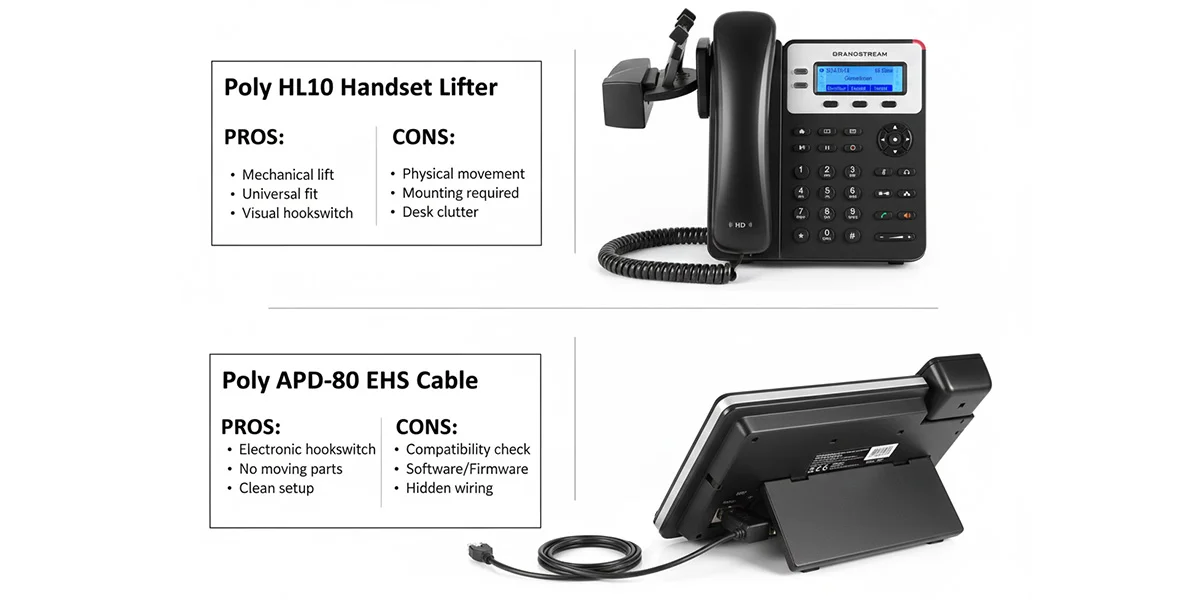
To enjoy remote call answering/ending, you will have to use a handset lifter or an EHS cable. Both will sense the incoming calls and alert you about the call.
Remote Answer/Hang Up Using Handset Lifter
How It Works: Uses a mechanical arm that physically lifts and lowers your handset to answer and end calls.
Answering Calls: When you are using a handset lifter for remote calls, just take the call by pressing the Call Control button on your headset.
Ending Calls: If you want to disconnect the call once you are finished talking, press the Call control button again.
Limitation: You will need to return to the telephone for dialling calls, transferring calls and performing any other phone functions.
Note: Most phones support the Handset Lifter function, but involve raising and lowering the handset to simulate answering the calls.
Remote Answer/Hang Up Using EHS Cable
How It Works: Electronically establishes calls through a direct connection to your phone's communication system.
Key Difference: The EHS will not require raising and lowering the handset for simulating a call. It electronically establishes calls on newer phones without any physical movement of the headset.
Benefits:
• Silent operation (no moving parts)
• Faster response time
• You can answer calls instantly, even from a distance
• Prevents calls from missing and going to voicemail
► Time-Saving Benefits
Whether you use a Hand Lifter or an EHS cable, both save you a tremendous amount of time by allowing you to answer calls remotely. A little delay in reaching your desk may convert your calls into an ongoing voicemail while playing phone tag with customers or coworkers.
With remote answer capability, you can answer calls away from your desk instead of rushing towards it. This is especially valuable in busy offices, when you're in meetings nearby, or when you're multitasking across your workspace. These remote answering features work similarly across different phone systems – learn more about implementing wireless solutions for Cisco IP phones if you're managing a multi-vendor environment.
How to Do Programming for Headsets Compatible with Grandstream Phones?
The right programming is necessary to streamline the headset and call operations. Consider the following programming so that your headset works smoothly with your phone.
Programming for Microphone Volume Setting
The headset microphones are extremely sensitive during the initial installation that your caller just hears the echoing. They are unable to hear what you were actually saying. To solve this issue, follow these steps:
Programming for Remote Answering with EHS Cables
Some EHS cables initially do not answer the calls and require you to attend calls by being at the desk. Resolve this issue by following these steps:
Programming for Enabling Remote Answering with EHS Cables
● Compatible Phone Models
The phones GXP1760/GXP1780/GXP1782/GXP2130/GXP2140/GXP2160/GXP2170/GXP2135 are compatible with the RJ11 headsets and the Plantronics EHS headsets.
Method 1: Web GUI Access
Step 1: Go to the phone's web graphical User Interface (GUI) using your phone's IP address
Step 2: Navigate to Settings → Audio Control: Headset Type
Step 3: Select "Plantronics EHS" and reboot the phone
Alternative Path: Settings → preferences → audio control and selecting "Plantronics EHS Headset" instead of the default "normal". Reboot the system.
Method 2: For GXP2140
Step 1: Go to Maintenance → Device Manager: Headset Type
Step 2: Select the Headset type "Plantronics EHS"
Step 3: Reboot to confirm the changes
● Final Connection Steps
Once you have made the above changes, follow this procedure:
1. Connect the EHS headset (Plantronics) to any of the phones GXP2130/GXP2140/GXP2160/GXP2170/GXP2135. Insert the headset connector into the RJ11 headset port on the back of the phone.
2. To use the headset mode, just press the headset button on any of these phones. On pressing the headset button, a headset icon will be shown on the status bar.
Still Have Questions About Grandstream Headset Compatibility?
Our certified headset experts are ready to help you find the perfect headset solution for your Grandstream phone. We provide support before, during, and after the sale. We also offer comprehensive compatibility guides for Avaya phones and other major business phone systems.
Contact Our Experts